Smartphones have become our lifelines today. With new features and hardware coming along in new smartphones, our dependency have increased a lot on them. Apart from just using it to send out important mails and updating social media profiles, we even use it for storing precious information like official presentations, documents and other stuff. There is always risk of losing data, so it is always recommended to take backups. Unfortunately, in our busy lives today, it is impossible to take complete backups due to the amount of time it takes. However, you do not need to worry about it anymore now! I am going to introduce you to a tool, called Vibosoft Dr. Mobile for Android which helps you to take one click backups and restore if needed.
System requirements:
- Supported OS: Windows XP, Windows 7 and 8, both 32 bit and 64 bit.
- Supports all Android devices from version 2.0 up to KitKat, 4.4.4.
- Processor: At least 1 GHz.
- Minimum RAM: 256 MB, Recommended: 1024 MB.
- Minimum space: 200 MB.
What is Vibosoft Dr. Mobile for Android?
This tiny piece of software helps you to take backups of your entire device with just one click. It can help you to backup almost every file present on your device, including images, videos, contacts, SMS and more. In short, it helps you to recover all your deleted data, just in case you lose your smartphone or it gets damaged.
Key features of the software:
- Supports all Android devices up to Android 4.4.4.
- Scans your entire internal and external storage, contacts and SMS from your smartphone.
- Helps you to backup and restore documents, SMS, MMS, contacts, etc.
How to recover lost contacts from your Android phone?
1. To restore contacts, you will have to first enable USB debugging. To do this, first head over to “Development Options” from Settings and find USB debugging.
2. If your smartphone is running Android 4.2 and above, than you will have to first enable Developer options. To do this, just go to “About Device” and tap “Build Number” until you get toast notification saying that developer mode has been enabled.
3. Once you have enabled USB debugging, connect your device with USB cable to your computer.
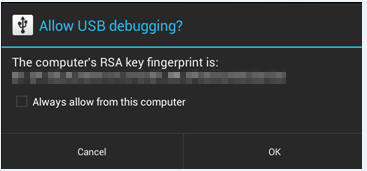
4. For Android 4.2 and above devices, you might also receive a popup on your device as shown below, so just allow it. If you are not on public computer, just tick the option which says “Always allow from this computer” and touch “OK”, so that you do not have to enable it again and again.
5. Once your device is connected, it will start displaying your information about your smartphone. On the left pane, you will find links to various features like Contacts and SMS.
Related: Check out Wondershare for android tool here.
6. Just click on the contacts tab and it will scan your entire list. After that is done, it will display list of contacts that are backed up on your computer but are not available on your smartphone.
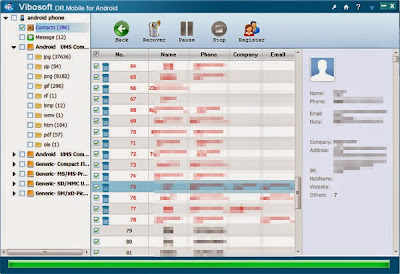
7. To restore, just check the boxes next to each contacts that you wish to have on your device and click restore. If you want to restore all contacts after you have formatted your device or got a new one, just select all contacts with an option that is present on top of the table. The entire process is as simple as writing ABC!
8. You can read more detailed guide about recovering deleted contacts from Android through their guide available recovering deleted contacts from Android here.
Final verdict:
Overall, Vibosoft Dr. Mobile for Android is good software for busy people to ensure timely backups and restore with one click in case if you need. You can buy it now for $39.95. they do offer free trial, so that you can try before you buy.

Hi MUJTABA,
I’m pleased to be here. It is very important post for all smartphone user. You described all things in very well manner. I loved your way how you present this.
Keep sharing such awesome post!
Thank you so much for sharing this awesome article with us here.
Regards,
Mazid Umar